
Find the question behind the pause
A person can pause at Import for several reasons. They might worry about overwriting contacts, need help matching columns, or be waiting for a colleague to send the file. “Click here to import your contacts” answers none of those questions.
Use that point in the workflow to choose the help. For the example in this article, suppose a B2B product imports contacts from CSV, matches existing records by email, and keeps current values when a cell in the file is blank. Those are assumptions for an illustrative import. Any copy you use in your own form needs to match its actual behaviour.
First check whether the screen itself can resolve the difficulty. Rewrite an unclear label, display the processing result, or explain why an action is unavailable. Then look at the question that remains.
Keep the update rule beside the switch
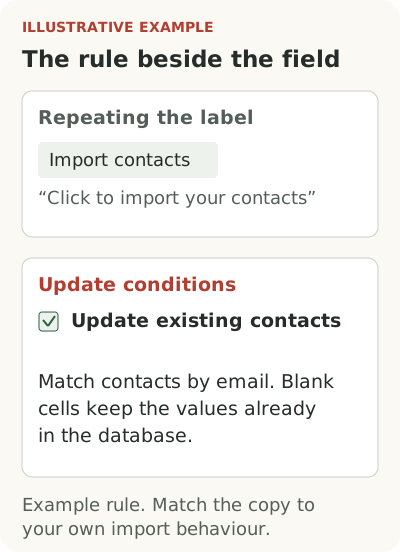
“Update existing contacts” leaves two details open: how the service finds a matching contact and how it treats blank cells. Both affect the user’s decision. In our example, the form could say: “We’ll update contacts with the same email address. Blank cells will keep the values already in your database.”
Keep this explanation visible beside the switch because people need it before agreeing to update records. A tooltip opened on demand can hold a secondary detail. Hiding a condition that affects data changes behind an easy-to-miss icon risks leaving the person to discover it from the import result.
Preparing the entire file is a larger task. Offer a sample CSV and instructions before upload so the person can compare columns and edit their data. Help beside one field has a narrower purpose: it explains a choice the person is making in the form. It cannot do the preparation for them.
Guide a sequence the person can do now
The file is ready, the user has import permission, and they are opening the form for the first time. A short tour can guide one connected task: upload the CSV, match its columns, and check the preview. The person works with their own file and can see what each choice changes.
Each step should explain the decision at that point. Column matching may require choosing the email field; the preview may require checking which contacts will be added or updated. Listing screen names leaves those questions unanswered while adding more Next buttons to press.
Track tour completion separately from import success. Someone can close the final prompt while processing is still running, and that job can return errors. Show the actual outcome after confirmation and explain how to repair a failed import. Give people a way to leave the tour as well, whether they want to continue alone or return later.
Check how much of the sequence applies across roles and account states. One person may lack permission, another may have existing data, and a third may need a different file format. Before adding branches to cover all of them, see which conditions the form can explain through its current state. Offer the guided sequence to people who can complete it now.
Keep unfinished preparation visible
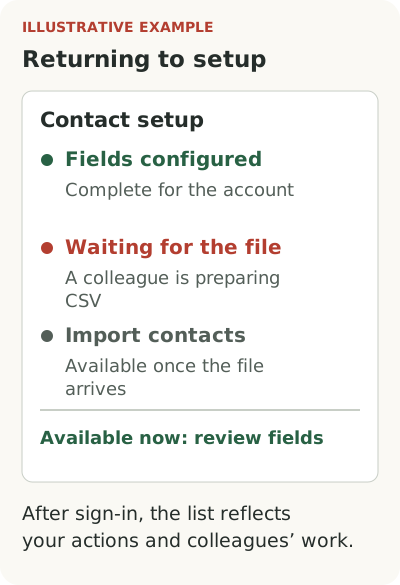
An import can involve several visits and several people. One employee configures the fields, a colleague prepares the CSV, and an admin grants access. A checklist can show what is ready and what to return to after the other work is done.
Name items after outcomes: “Fields configured,” “File received,” “Contacts imported.” Decide what confirms each one. Visiting Settings records a visit, so it cannot establish that the fields are ready. When completion belongs to the account, include colleagues’ actions. A rep should not be asked to repeat an import the admin has finished.
For a waiting item, show the reason and the person responsible. A colleague might still be preparing the file while the user can inspect the fields. On the next sign-in, completed items should retain their state and the available next action should reflect changes in the account. Otherwise the user has to reconstruct the plan from memory.
Separate required preparation from optional settings. A profile photo is not a prerequisite for importing contacts. Including it in an unexplained readiness score can suggest that the workflow remains unavailable after the necessary setup is complete.
Check whether the import succeeded
A rollout can use more than one pattern, each with a different purpose. The update rule stays in the form, a short tour helps someone match columns for the first time, and a checklist serves people still waiting on preparation. They do not all need to appear at once.
Give a participant a file and ask them to add the contacts while preserving the existing data they need. Let them find help without pointing it out. Watch where they pause, whether they read the rule, and how they check the result. Finishing the tour while overlooking lost records would give you a completion event without a successful task.
Use the observed question to choose the next change. Uncertainty about the update switch calls for an explanation beside it. Losing track after a break calls for saved progress. A processing error calls for a repair to the import itself. The format follows from the obstacle you can see.