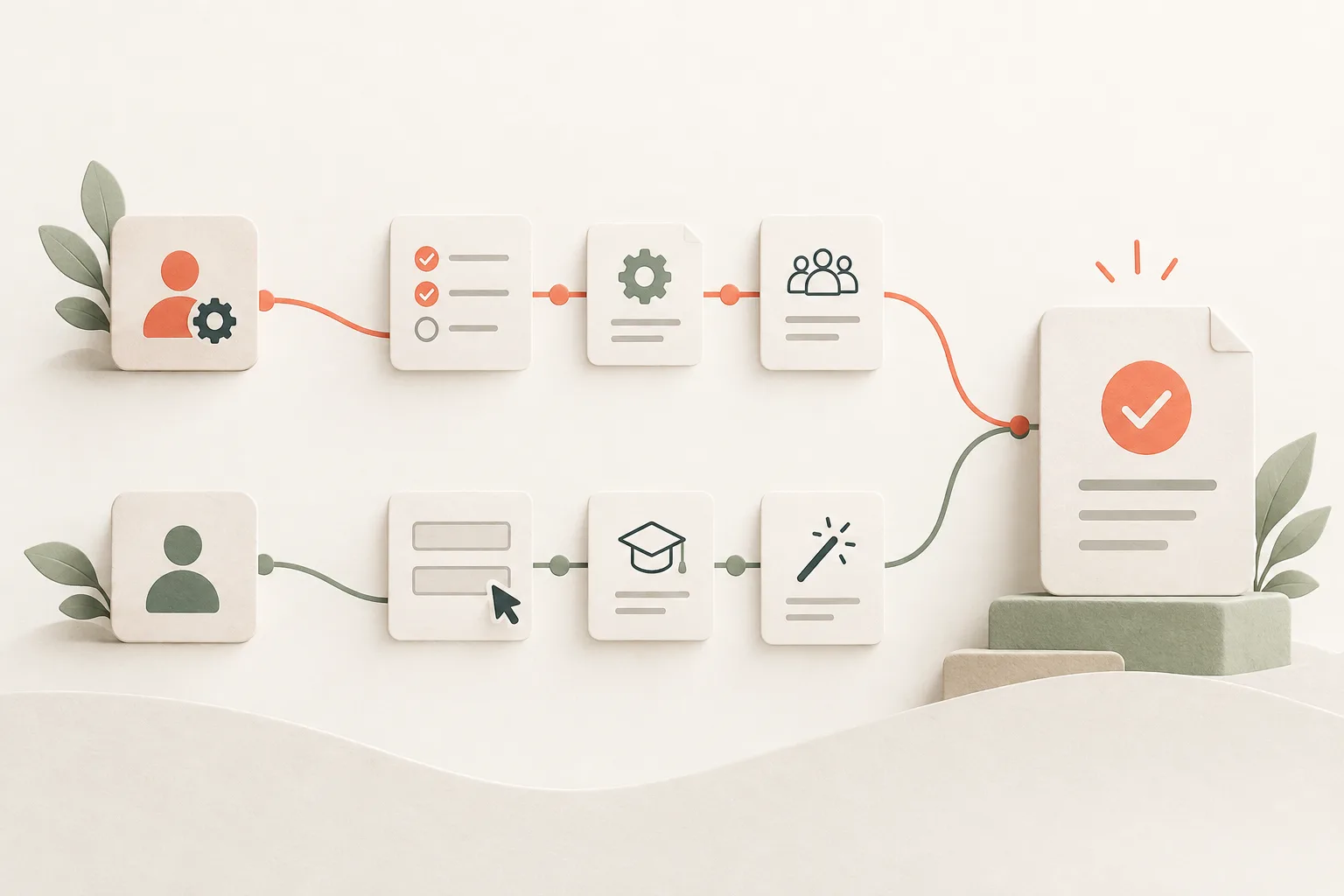
A team account has more than one starting point
By the time a sales rep first signs in, an admin may have imported the customer list and a sales lead may still be deciding whom to invite. Each person has a different first task. Some of those tasks depend on work another person has yet to finish.
Take a CRM rollout as an illustrative example. The admin uploads contacts and invites a rep. From the admin’s perspective, setup is nearly done. The rep needs to find a customer, read the account history, and schedule a call. A welcome tour that asks them to create a workspace and import contacts sends them through work their colleague has completed. Dismissing the tour still leaves them with the problem of finding their own customer list.
Designing onboarding around the account gives you a way to connect these separate starts. The lead chooses the product, the admin prepares data and access, and reps create working records. The lead can assess the team’s progress once those records contain actual work. An account-level label saying “Setup complete” cannot tell each of them whether they are ready to begin.
This distinction also changes where you investigate a stalled rollout. If owners finish setup but invited colleagues leave after signing in, follow an invited colleague’s path. The owner’s successful setup tells you little about what that person encounters.
Make data and access part of the handoff
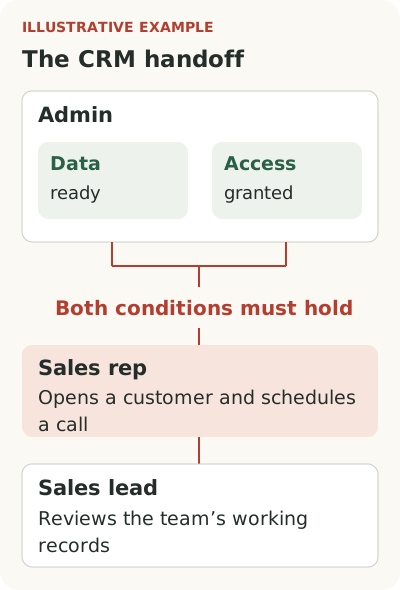
The rep needs both an imported customer list and permission to open it. Check each condition. An admin visiting Settings does not confirm that they granted access, and an accepted file does not establish that the rep can see the right records.
Describe the handoff in terms the product can verify: the admin has prepared the list, granted access, and enabled the rep to open it. Name the owner of any remaining work. An import still processing calls for a different message from a finished import awaiting an access change. In the second case, the rep needs an admin to act before they can continue.
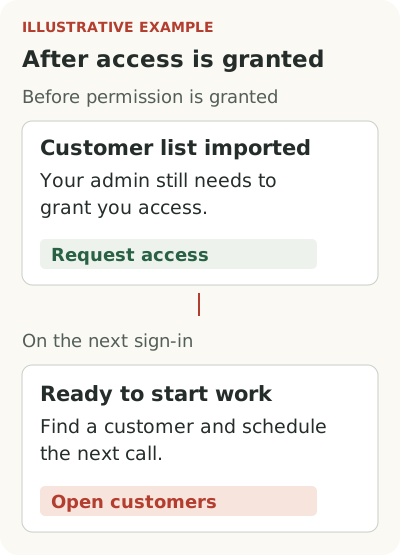
For example, an empty customer screen could say: “Your contacts are ready. Ask your admin for access to the customer list.” Give the rep a way to request access or find the person responsible. Once the admin grants it, the next sign-in should open the prepared list. Leaving the waiting message in place sends the rep back for help after the underlying problem has been resolved.
The same dependency can appear later in the rollout. A sales lead may have access to reporting while the report contains no useful records because the reps have yet to enter their work. Explain which records are missing so the lead can coordinate with the team. Asking them to connect an integration again obscures what they need to do.
Give each role a task they can finish
With the list ready, the rep can work through a small, complete job: find a customer, read the history, and schedule the next call. The product team can observe whether the right record is available and whether the rep saves a follow-up that makes sense. A brief to “introduce the CRM” leaves the endpoint open and makes a tour of every section seem reasonable.
Walk through the chosen job and examine its prerequisites. Access to the customer record is required; a profile photo can wait. Keep an import check if it protects the quality of the records the rep will use. Counting screens alone will not tell you which preparation to remove, since a necessary check can occupy a screen too.
Explanations belong where the person has a question. If a rep looks for “Schedule a call” but the interface offers “Create activity,” inspect the label and the choices in the form. A clearer action may be enough. You can then test whether people still need help at that point.
Sample contacts can let the rep try the workflow while the admin prepares the real list. Mark them as examples and show how to switch to company data. The rep needs to know whether a saved call belongs to a real customer or to a practice record, especially when they return later to continue working.
Test with an invited colleague’s permissions
Use a prepared test account and an ordinary member role. An owner can pass a setup test while having permissions that colleagues will never receive. Ask the member to find a customer and schedule a call without telling them which buttons to press. Watch whether they recognise the company’s data and understand what the admin has already done.
Change the starting conditions for another pass. Send one invitation before the import finishes; in another case, leave the data ready but withhold access. Check the waiting message, the route to help, and the screen after the admin resolves the issue. Sign out and back in to see whether the rep can resume with the new account state.
Record where the person stopped and what was missing. “Couldn’t find the customer list” may point to navigation. “The list was empty” calls for a check of import status and permissions. Those observations give the team a specific change to make and a result to verify: an invited colleague can reach the prepared records and begin their own work.