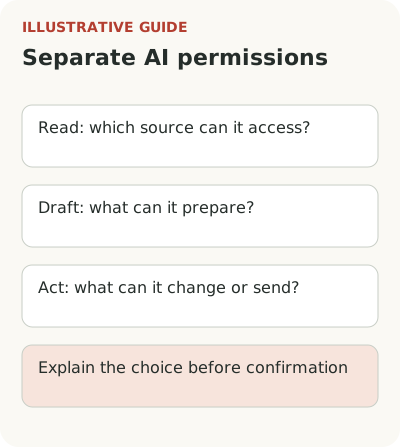
To explain AI access to data, name the source, required operation, and consequences: what the system reads, prepares, and can change. Separate granting permission, creating a draft, and performing an action. Users should understand their choice before confirming. The copy must match the service's actual limits.
Here onboarding should help someone make an informed decision about access and the first action. Show the feature's boundaries at the right moment, provide a clear way to review, and explain what happens if they decline. Copy works only alongside real product constraints.
In B2B, permission often depends on another participant. First check data and access handoffs between roles during onboarding: an employee may understand the value and still lack permission to connect a source.
What data and actions to name before connecting AI
Suppose a project management service introduces an AI assistant for weekly summaries. For a first run, someone wants to collect changes from one project. Instead, they're asked to connect the whole workspace immediately. The connection between the task and the access scope is unclear. The question is reasonable.
Start with a concrete explanation: what information the summary needs, where the system gets it, and what it produces. “Improve your experience with AI” doesn't help someone decide whether to grant permission. They should be able to compare access with their task rather than guess the team's intent.
Check that the explanation matches the feature. If the service really requires broad access, don't call it narrow to smooth the funnel. Discuss the reason with engineers and a possible first scenario using less data. Sometimes the technical solution needs to change. Copywriting doesn't replace that work.
Reading, drafting, and sending are different permissions
A feature that reads tasks and suggests a summary has one set of consequences. A feature that publishes it in a shared channel has another. Users should see the distinction before acting. The name “assistant” doesn't itself limit or explain anything.
In an analysis of AI features, Calix Leigh-Reign proposes showing result state and system access boundaries explicitly. It's a useful starting point for a product check: what can the system read, prepare, and change? The answers should match across settings, guidance, and the work screen.
In the hypothetical scenario, you could first show a draft summary, let the person edit it, and separately offer to send it. That order fits if it matches the task and the product's capabilities. Background automation needs a different agreement: which actions were authorized in advance, where the user can see history, and how to stop the process. Don't combine these modes under one word, “enable.”
These hypothetical messages apply to a service that can actually restrict reading to a selected folder, prepare a private draft, and send it to a channel separately. They don't replace permission checks or technical protection.
| State | Example message | What to check in behavior |
|---|---|---|
| Connect source | “Allow reading documents in the Project folder. This is needed for the weekly summary.” | The specified folder is read, not the entire workspace |
| Draft ready | “The summary is ready. Your team hasn't received it yet. Review and edit the text.” | Preparation didn't trigger sending |
| Confirm action | “Send the reviewed summary to the team channel?” | The recipient and version to be sent are visible |
If the product works differently, these messages don't fit. Describe its real action and, if necessary, change the permission boundary itself.
Explain consequences next to the decision
A general terms screen at registration doesn't replace an explanation before connecting a specific source. By then, the user has a concrete question. Show the necessary information next to the choice: what is connected, for which operation, and where settings are available. Detailed information can live in documentation, but the main meaning should stay on screen.
Check the confirmation button especially carefully. “Continue” could mean going to settings, granting access, or starting an action. If something significant happens, the label should reflect it. People shouldn't have to decipher the meaning after clicking.
At the same point, show what happens next. For example, after connecting the selected folder, the service will offer to prepare a draft rather than publish it immediately. Say this only if behavior actually matches. If part of the work happens automatically, explain it separately; don't hide it behind a general phrase about starting.
Check declining on the same screen. People should understand whether they can continue ordinary work without connecting and return to the feature later. If declining cancels settings already made, warn them before the choice. Don't turn exploring a capability into a mandatory workflow change: a first trial and a permanent connection require different readiness.
What to show someone who can't connect a source
In B2B, an employee often lacks the necessary permission. They came to solve a task, but connecting a source requires an administrator. If the screen only denies access, onboarding ends at a technical barrier. Another announcement won't fix it.
State the required permission and who in the workspace can help, if the product has that information. Let the person save the setup they started or return later. Check the administrator's path too: will they see exactly what needs permission, and can the employee continue after access changes?
These states are compared in unavailable features: plan, permissions, or setup. For AI, preserve the distinction: an access problem is not the same as declining to trust the result.
There is also deliberate refusal. A company may not permit this tool to process the selected data. Don't try to resolve that with a more insistent pop-up. If the feature has a demo-data or manual-input mode, explain its conditions. If there is no suitable mode, state the limitation directly. A tooltip can't make an unavailable scenario available.
How to check whether someone understood AI permission
For research, use a work task with safe test data. Ask the participant to complete setup and, before confirming, explain what the system will be able to read and do. Don't read the explanation to them. The gap between intended meaning and their answer shows what needs clarification.
After the first result, check a few more things: can they tell what has already been sent, find a way to correct it, and understand where access is disabled? Not every setting must live on one screen. But the path should be discoverable without guessing and match the service's actual behavior.
Check later value through application and repeat use of the AI feature. Clear permission opens a path to trial but doesn't prove the answer is usable for work.
For selecting checks, use Microsoft's research on human-AI interaction. It is a 2019 methodological source, not evidence of current demand or a ready-made safety standard for your product. It helps consider system behavior over time, including errors and changes, rather than test one successful answer.
In analytics, distinguish an informed refusal, missing permissions, connection error, and abandonment at the next step. A fall in overall connection conversion won't tell you what happened. For a first review, one feature and one role are enough: what did the person expect to permit, what did they actually permit, and could they finish the task? Start with that conversation and a behavior check. Shorten the on-screen copy after the ambiguity is gone.