
Explain an unavailable feature by its cause: a different plan, missing permission and incomplete setup require different next steps. Show the precise reason beside the visible action and lead to a solution the person can use. A disabled button with a generic “insufficient permissions” message doesn't help choose any of them.
Imagine a payroll system adds bulk review of pay calculations. An accountant sees the menu item, opens it and gets a disabled button. The account has the right plan, but an administrator hasn't enabled the new mode. An upgrade offer appears beside it. The user can't tell whether to pay or contact a colleague.
Distinguish account restrictions from individual permissions
Separate account conditions and individual permissions. The plan determines commercial availability, the release wave determines technical access, the role determines allowed actions, and setup determines workflow readiness. These conditions can be independent. A single general access flag is convenient only until the first complicated release.
For the hypothetical payroll system, define a few clear states: the mode is included but not enabled; enabled but the employee lacks permission; permission exists but pay data isn't loaded; everything is ready. The user doesn't need the whole matrix. They need the correct answer for their state; the team needs the full picture for testing.
Gradual access is illustrated in LaunchDarkly's documentation: a release can expand in different ways, separately from code deployment. This doesn't describe payroll plans; it shows a distinct availability condition. Don't send a commercial offer when the feature simply hasn't entered the current release wave.
Give different messages for plan, permission and setup
Hypothetical messages for bulk payroll review:
| Cause | State message | Next action |
|---|---|---|
| Plan | “Bulk review is available on the Team plan. Your organization uses Basic. The account owner can change the plan” | “View plan terms”; don't promise that the employee can buy it themselves |
| Permission | “You need permission to approve pay calculations to run the review. You currently have view-only access” | “How to request permission”; instructions for the organization's actual process |
| Setup | “Pay calculations haven't been uploaded for the selected period. Add data, then start the review” | “Go to upload” only if the person has upload permission |
These are complete examples with hypothetical plan and permission names. If another department uploads data, the third message should name the wait and contact route instead of offering an unusable button. The same principle applies to AI access to data: the explanation must match the permitted action, not a general service promise.
Sometimes hiding a capability is clearer: the employee can never use it in their role and it only clutters the menu. In other cases, visibility helps because they can request access or prepare setup. The choice depends on a real path. A disabled item without explanation does neither job.
If another plan is required, say so before work starts. Show who can change the plan and what happens afterward. Don't push an ordinary accountant to buy if they don't control the subscription. Their useful action may be passing a request to the account owner, if that path actually exists.
If the cause is the role, explain the required permission in plain language. “Review is available to employees who can approve pay calculations” is more precise than an error code. But don't disclose unnecessary information about colleagues or access settings. The request path must follow the organization's rules, not assume every administrator can be found by name in the interface.
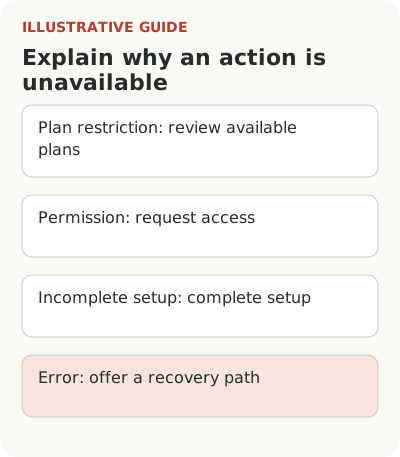
Separate missing data from an error
An empty form after enabling the feature doesn't always mean an error. Payroll review first needs a period, an employee list and calculation data. Name the missing step and lead to it. “Nothing found” leaves the user guessing whether data hasn't been uploaded or the new feature lost it.
Explain a dependency the person can't resolve themselves. If another department uploads data, the accountant needs status and a clear way to learn the timing. Repeatedly showing “Try again” is pointless. It creates repeated requests without changing the condition on which readiness depends.
Describe a real failure separately: the operation didn't finish, data wasn't changed, or its state needs checking. Don't replace an error with a plan message because a response field is missing. For sensitive operations such as payroll, false confidence is especially harmful. The user needs to know whether a retry is safe.
Check access requests and exits from the block
Collect unavailability causes separately. A general error event won't show how many people needed permission, lacked prepared data or encountered a failure. Choose an analysis unit: account is often useful for plan and enablement, individual employee for role. Don't combine different levels into one refusal rate.
An access-request button needs a clear promise too. If it only sends a notification, don't call it “Get access”: another person decides. Show that the request was sent, who receives it within permitted disclosure limits, and what the user can do while waiting. Don't create a new request on every repeated click.
The state explanation doesn't replace server-side permission checks. An employee can open a direct link or submit an action from a long-open page. The restriction must still hold, and the response should explain the cause without exposing another person's data. A convenient permission request builds on reliable rules, not in place of them.
After a fix, check whether people complete the appropriate next step: obtain permission, prepare data or run payroll review. Fewer support requests don't prove success alone: people may simply have stopped trying. Observe completed tasks through the full payroll cycle and inspect remaining dead ends separately.
Start with one unavailable button and check the copy in every role. Examine data preparation through import and integration barriers, and remove unsuitable invitations through release audience selection. In B2B onboarding, another person owns part of the work; a clear waiting state helps more than a “Try again” button that changes nothing.